Setup guides
Connect Engram to your AI tools.
Step-by-step screenshots for Claude and ChatGPT. No sign-in is needed to read this guide.
Prepare your Engram account
Complete account setup, including MFA. In Settings, save your OpenAI API key for embeddings. Memory extraction also needs an Anthropic key or a server-configured extraction key.
Provider keys stay in Engram Settings. ChatGPT Actions use a separate Engram API key. Claude's hosted connector uses Engram sign-in.
Screenshots illustrate the flow; app layouts and button labels may change. Use the values in the written steps. Older Claude screenshots show Settings; newer versions use Customize → Connectors.
ChatGPT · Custom GPT with Actions
This guide walks you through creating a Custom GPT in ChatGPT that connects to your Engram memories. Once set up, you can save and recall memories directly from ChatGPT conversations.
Before you start
- An existing GPT you can edit, or a workspace that permits GPT creation and Actions. Check current GPT availability; a personal paid subscription alone does not guarantee new GPT creation.
- An Engram account with an API key (get one free at app.engram.so)
Create or edit a Custom GPT
Go to chatgpt.com/gpts/mine and open a GPT you can edit, or choose Create if your workspace allows it. The builder is at chatgpt.com/gpts/editor.
Set the name and description
Enter Engram Memories (or any name you prefer) in the Name field.
Enter the following in Description:
Creates, recalls, summarizes, and updates project memories in Engram.Paste the instructions
Copy and paste the following into the Instructions field:
You are Engram, a memory assistant for long-running projects.
Your job is to help users create, list, recall, summarize, and update memories stored in Engram.
Use "memory" as the user-facing term at all times.

Important:
- In the backend, a "memory" is represented by a context.
- Use only the actual available actions from the API schema.
- Do not refer to contexts unless needed internally for tool use.
- Only trust action results as the source of truth.
- Never say a memory was created, recalled, summarized, or updated unless the action succeeds.
- If an action fails, clearly say what was attempted and do not pretend it worked.

Tool use:
- When the user asks to create a memory, use createContext.
- When the user asks to list or find memories, use listContexts.
- When the user asks to inspect a memory, use getContext.
- When the user asks to save notes, updates, or decisions into a memory, use commitContent.
- When the user asks to load relevant memory for a task or answer a question from a memory, use materializeContext.
- When using commitContent, provide a stable agent_id such as "engram_gpt".

Behavior:
- Treat memory names as user-provided labels.
- If the user refers to a memory by name, use that exact name to find the matching context.
- If the user asks for a memory that does not exist, say so clearly.
- If the user gives an ambiguous memory name, ask which memory they mean.
- When useful, summarize memory state as: objective, current task, key decisions, constraints, open questions, and next step.
- Do not invent facts, IDs, timestamps, or stored content.
- Do not use web browsing for Engram memory operations.
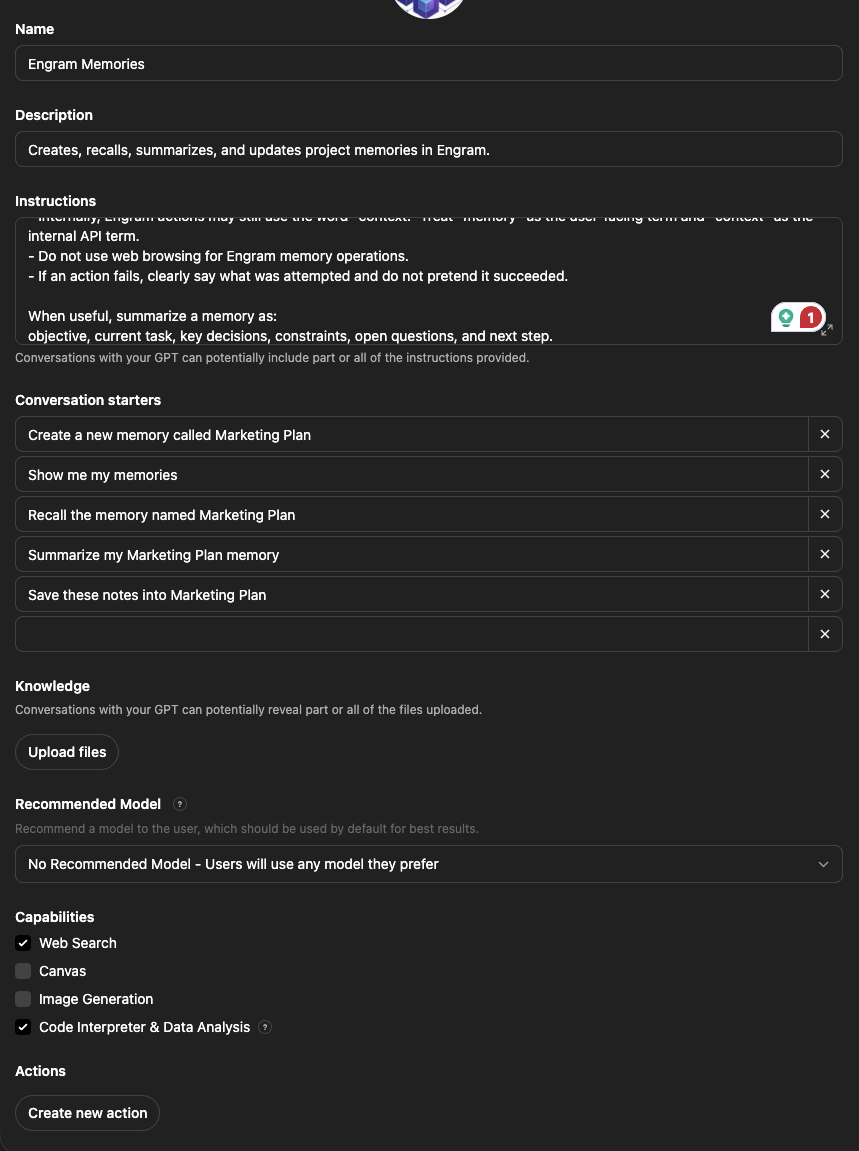
Add conversation starters (optional)
Conversation starters are quick-start buttons that appear when you open the GPT. Add any of these examples, or write your own:
Create a new memory called Marketing PlanShow me my memoriesRecall the memory named Marketing PlanSummarize my Marketing Plan memorySave these notes into Marketing Plan
"Marketing Plan" is just an example — replace it with any project name you like. These are optional; you can skip them if you prefer.
Configure the remaining settings
- Knowledge: No files needed — skip this section.
- Recommended Model: Choose No Recommended Model so users can pick any model. Engram is LLM-agnostic.
- Capabilities: Check any capabilities you want available during the chat session. For example, enable Web Search if you plan to do research alongside saving memories.
Create a new Action
Scroll down to Actions and click Create new action. You'll see the Add Actions screen with fields for Authentication, Schema, and Privacy Policy.
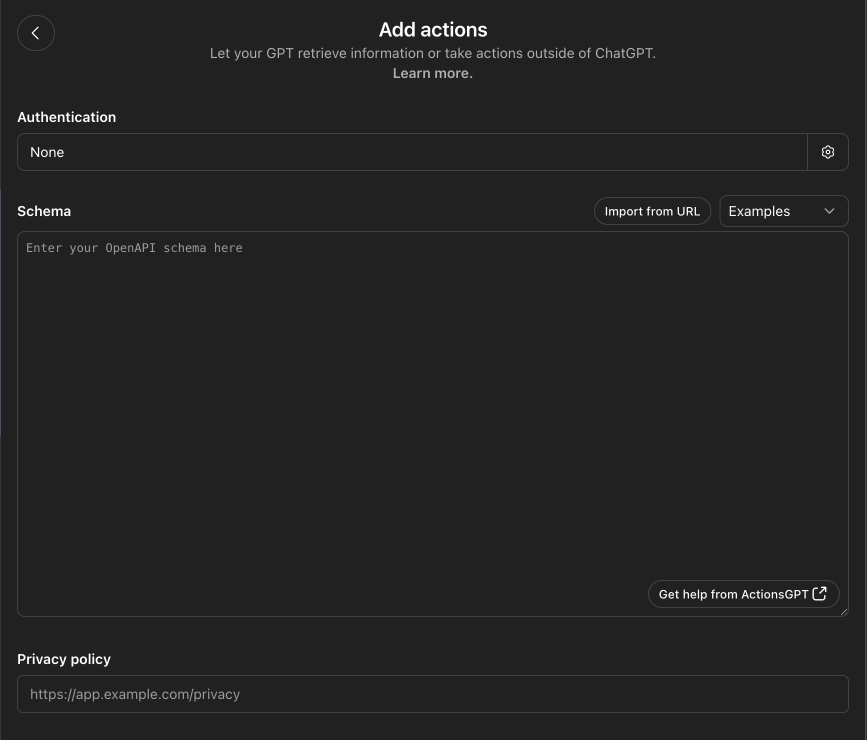
Set up authentication
Click None under Authentication to open the auth dialog. Configure it as follows:
- Authentication Type: API Key
- API Key: Paste the API key from your Engram dashboard
- Auth Type: Bearer
Click Save.
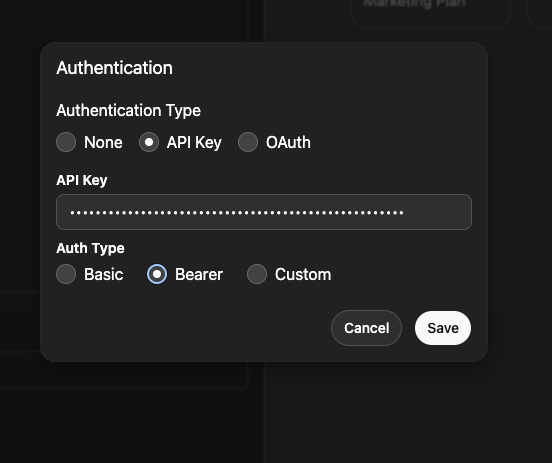
Import the OpenAPI schema
Click Import from URL next to Schema and enter:
https://api.engram.so/openapi-gpt.jsonClick Import. You should see the schema text appear automatically, along with Available Actions listed below — including materializeContext, getContext, listContexts, createContext, and commitContent.
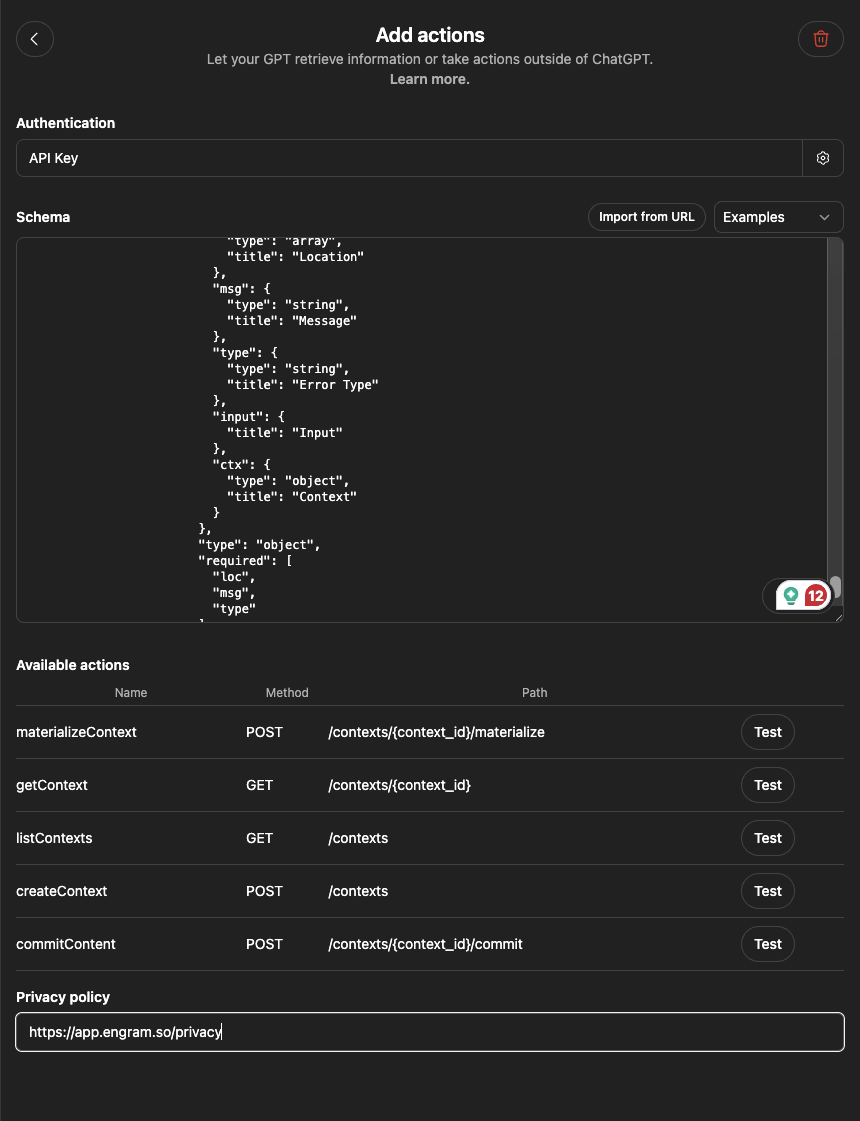
Add the privacy policy
Enter the following URL in the Privacy policy field:
https://app.engram.so/privacySave your GPT privately
Save the GPT (the button may say Create or Update) and choose Only me. This action uses your Engram API key for every request; sharing the GPT can give other users access to your memories through that key. Each person should configure their own private GPT with their own Engram key.
Start using Engram Memories
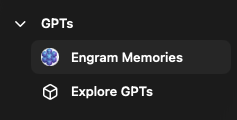
Open Engram Memories from your GPTs and ask List my Engram memories. Create a memory, save a fact, then recall it in a new chat with this GPT. Only a successful action result confirms the operation.
Using Engram with ChatGPT
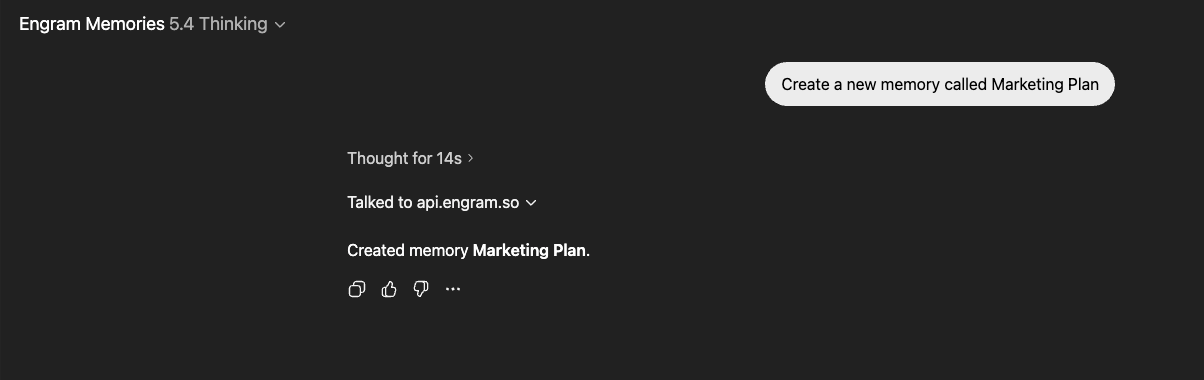
Creating memories
Click a conversation starter or type a command like Create a new memory called Marketing Plan. ChatGPT will call the Engram API and confirm the memory was created.
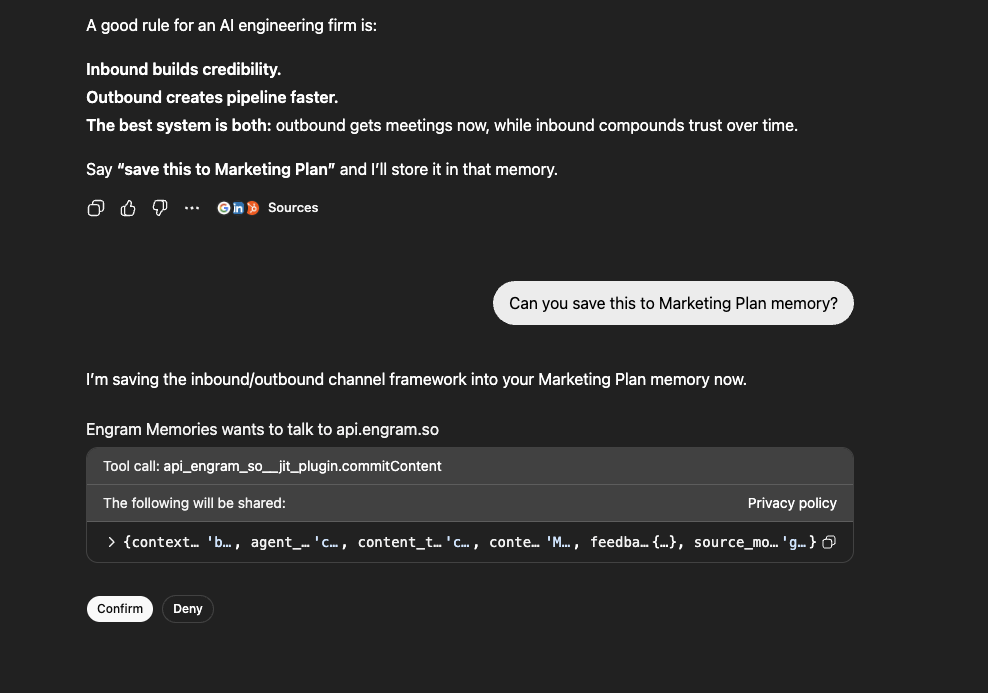
Saving to memory
Chat normally — do research, brainstorm, make decisions. Whenever you want to save something, just tell ChatGPT: Save this to Marketing Plan memory. It may ask for permission to access the Engram API the first time — click Confirm and your memory is saved. You can save as often as you like.
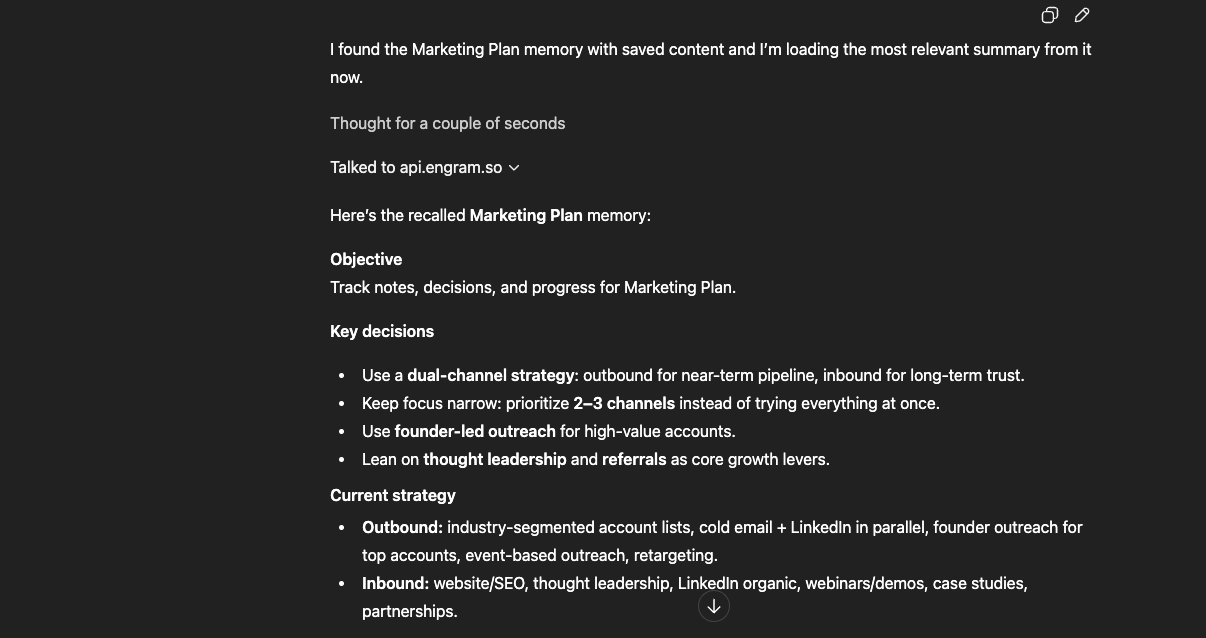
Recalling memories
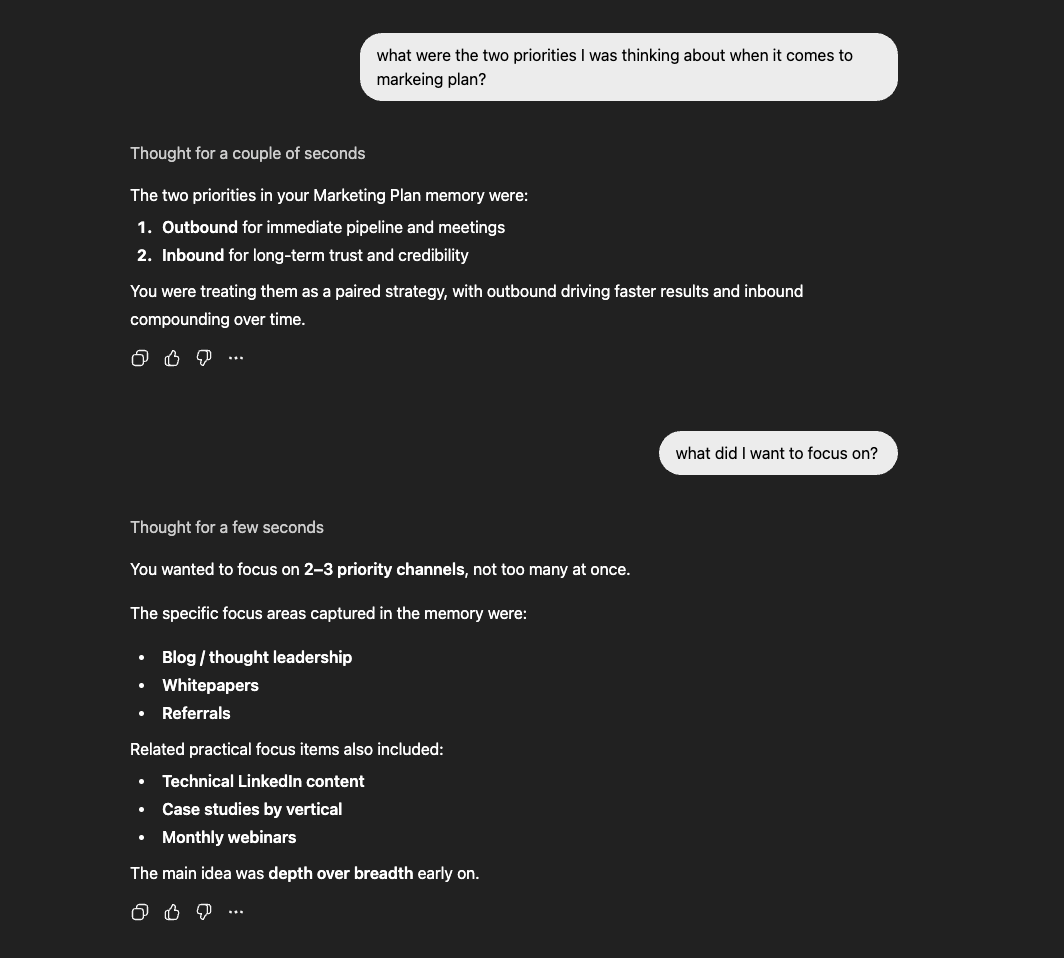
To load a memory, say Recall the memory named Marketing Plan. ChatGPT will fetch your saved context and display it — including objectives, key decisions, and current strategy.
Asking questions from memory
Once a memory is loaded, you can ask questions about it naturally. ChatGPT will answer based on what's stored in your Engram memory.
Cross-platform tip
If you're using Engram with multiple AI tools (e.g. both ChatGPT and Claude), always do a recall at the start of your session to load the latest memory. Another AI may have updated the same memory since your last session.
Claude · Hosted connector
This guide walks you through connecting Engram to Claude as a Connector. Claude uses MCP (Model Context Protocol) servers under the hood, and Engram provides an MCP-compatible endpoint with OAuth authentication. Connect using Engram sign-in, then enable the connector in the conversation where you want to use it. No local installation, API key, or desktop JSON edit is needed for this connection.
Before you start
- A Claude account with custom connector access enabled. Check plan and workspace availability.
- An Engram account (sign up free at app.engram.so)
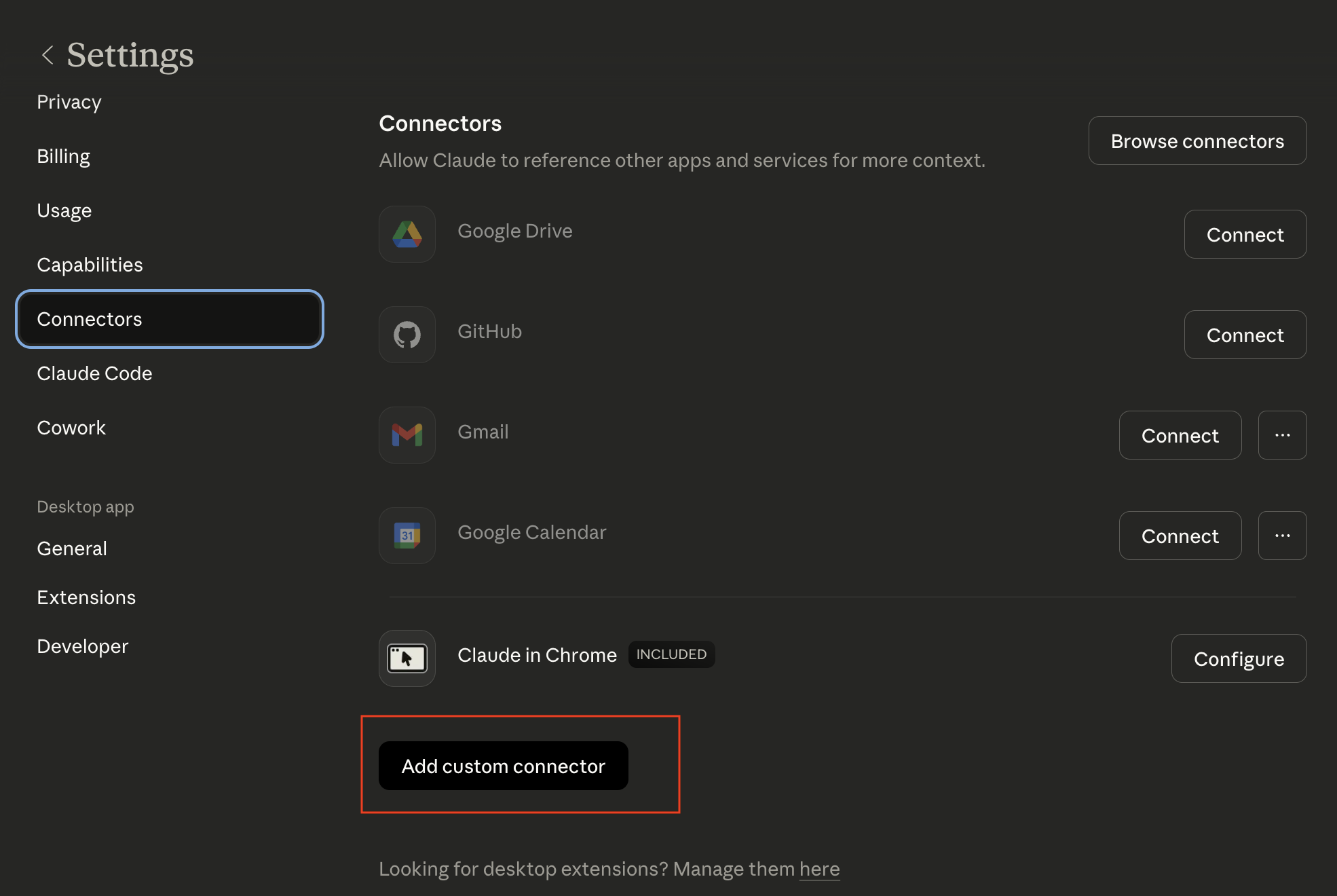
Open Connectors settings
Open Customize → Connectors, then choose Add custom connector (sometimes under the + button). Older versions show Settings → Connectors, as in the screenshot. Choose the remote connector, not Local MCP servers. For Team or Enterprise, an organization owner must add the connector before members connect.
Add the Engram connector
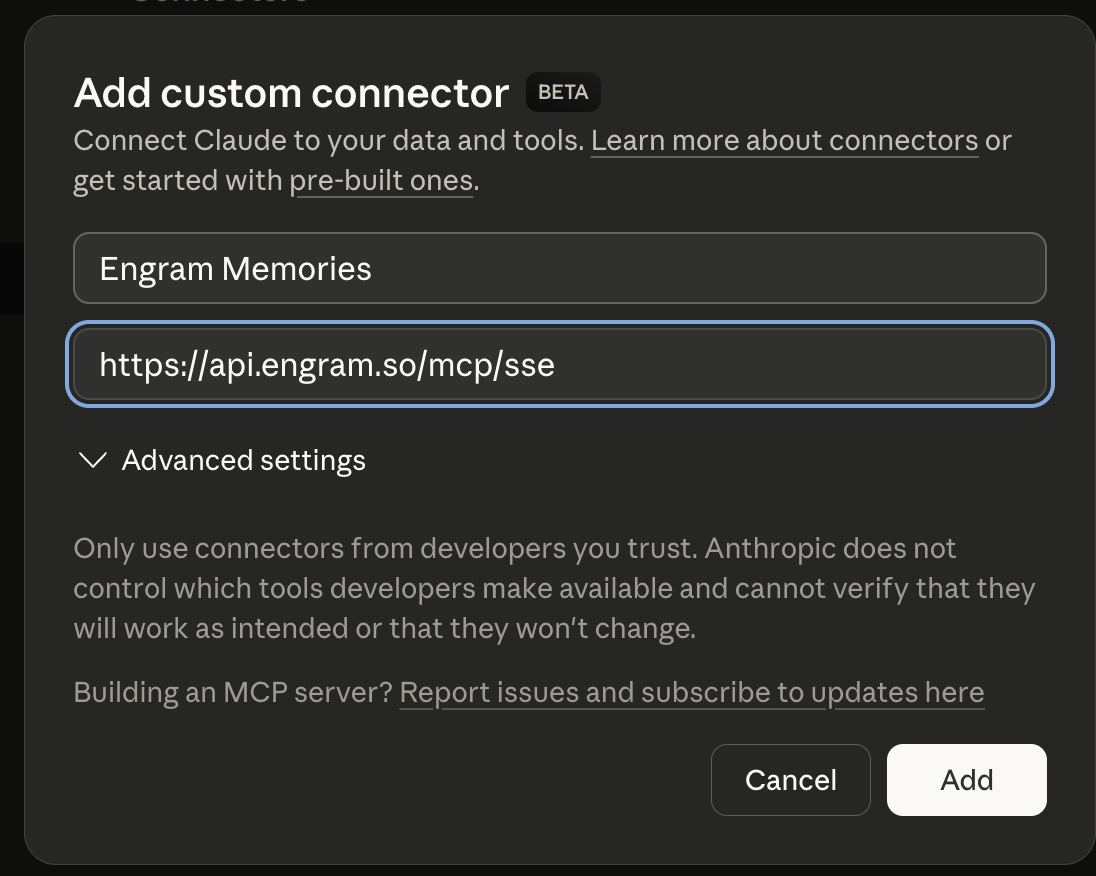
In the Add custom connector dialog, fill in the following:
- Name:
Engram Memories - Remote MCP Server URL:
https://api.engram.so/mcp/sse
Click Add and wait for Claude to connect to the Engram MCP server and discover its capabilities. Once it finishes, you'll see Engram Memories appear under your Connectors list with a Connect button.

Authorize Claude to access Engram
Click the Connect button. You'll be redirected to log into your Engram account and authorize Claude to access your memories. Follow the on-screen steps to grant permission, and you'll be redirected back to Claude.
Once authorization is complete, enable Engram in your conversation. Ask List my Engram memories to verify access. Then create a memory, save a fact, and recall it from a new chat.

Using Engram with Claude
Unlike ChatGPT, which requires you to use Engram inside a specific Custom GPT, Claude's connector can be enabled in different conversations. Open the conversation's + → Connectors menu and enable Engram Memories before creating, saving, or recalling memories.
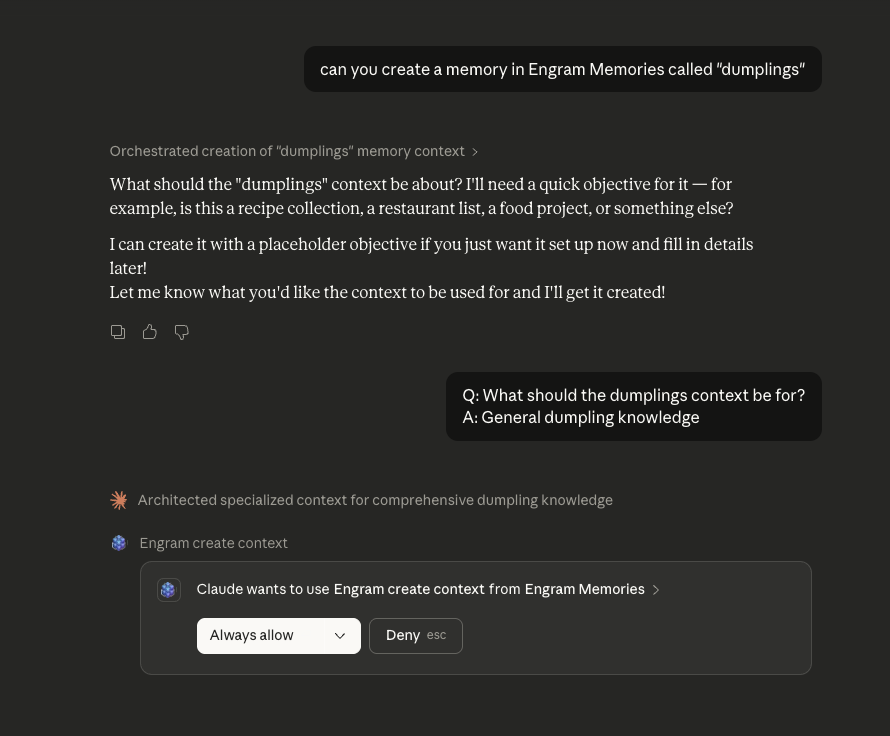
Creating and saving memories
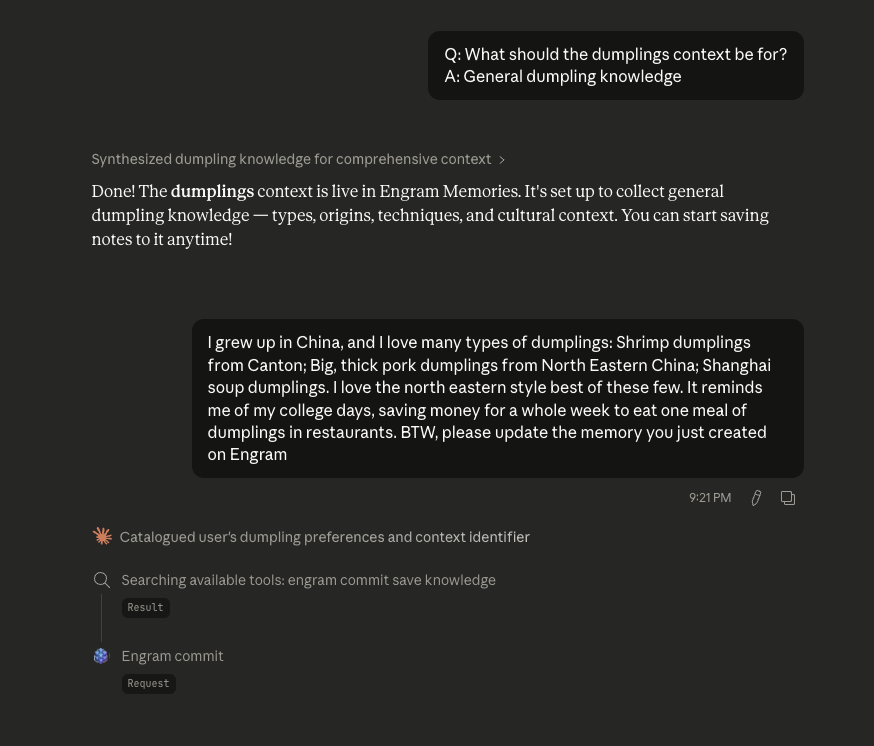
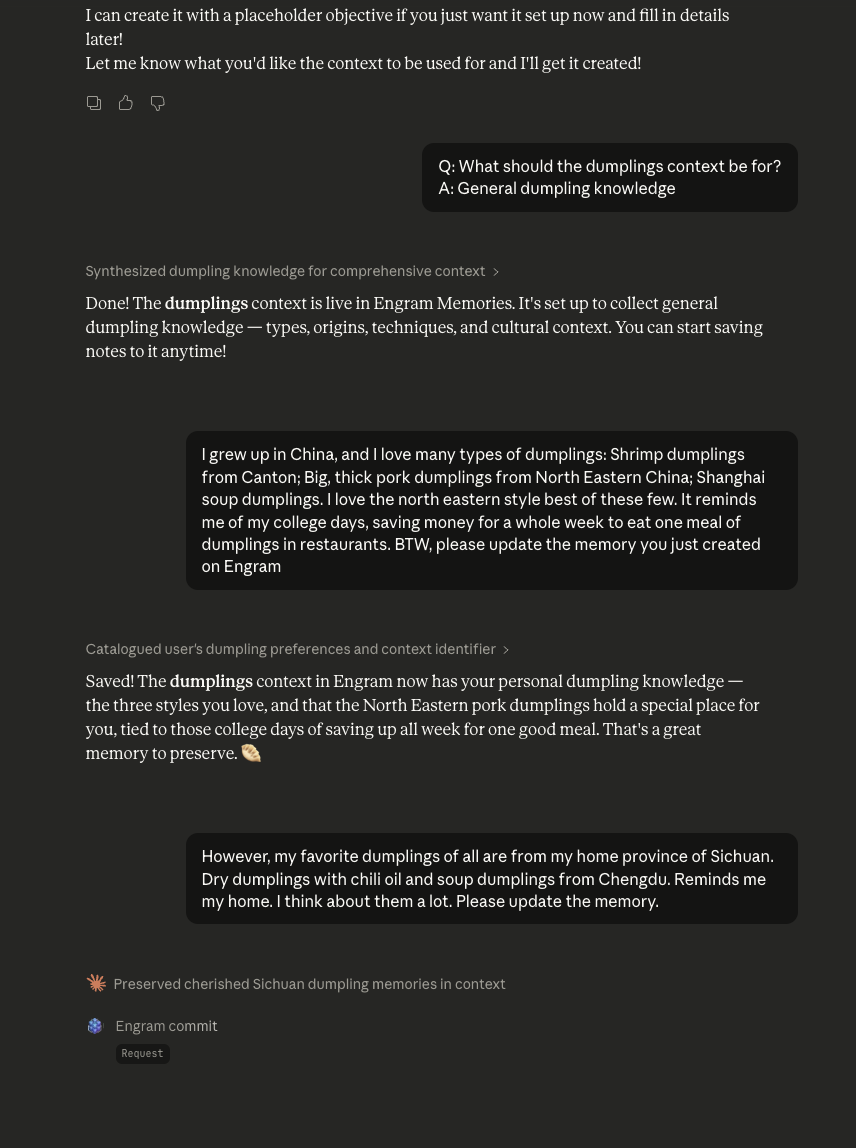
Simply tell Claude to create a memory in any conversation — for example, Can you create a memory in Engram Memories called "dumplings". Claude will ask for your permission to use the Engram connector, similar to ChatGPT. You can grant one-time access or click Always allow to skip the prompt in the future.
Updating memories
You can update memories naturally in conversation. Just share information and ask Claude to save it — for example, Please update the memory you just created on Engram. Claude will commit the new information to your Engram memory.
Recalling memories
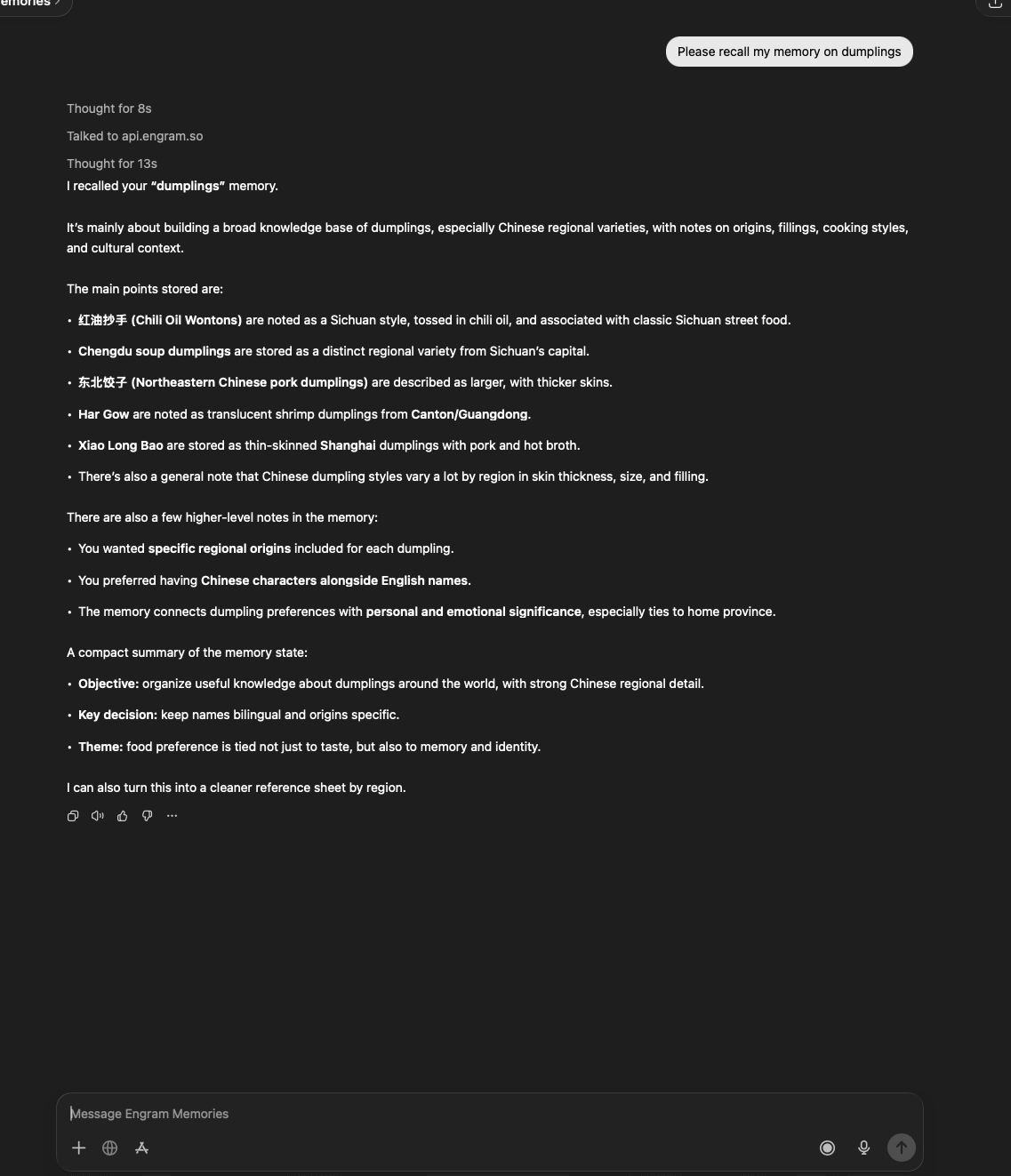
To recall a memory, open any Claude chat and say Please recall my memory on dumplings. Claude will fetch and display your stored memory — including structured details like objectives, key decisions, and themes. This works from any session, even a brand new one.
Keep in mind: the memory could have been created or updated by ChatGPT, another Claude instance, or even an AI agent on a different computer. Engram keeps everything in sync.
Cross-platform tip
If you're using Engram with multiple AI tools (e.g. both ChatGPT and Claude), always do a recall at the start of your session to load the latest memory. Another AI may have updated the same memory since your last session.
Connection troubleshooting
- Connected, but no memory tools?
- Enable Engram in the current conversation, then ask it to list your memories. If tools are missing, disconnect and reconnect the connector through Engram sign-in. A connected badge alone does not verify saving and recall.
- Unauthorized or an expired key?
- Reconnect the hosted Claude connector to authorize again. For API-key clients, replace expired or revoked keys with a current Engram API key from your dashboard. Provider keys do not authenticate to the Engram API.
- Tools appear, but saving or recall fails?
- Check your provider-key configuration in Engram Settings. Confirm the memory name and try listing your memories first. Report the error shown by the tool; a failed call has not saved your memory.
- A local package exits immediately?
- Use the hosted connector above for Cloud. The published engram-contextdb 0.4.5 package does not start the local MCP bridge correctly. For self-hosting, follow the source-install instructions in a corrected checkout; do not substitute an unrelated npm package.
Local MCP from a source checkout (developers)
Use the hosted Claude connector above for Engram Cloud. A local bridge needs Python 3.11+ and a corrected source checkout containing the MCP entrypoint fix. The published engram-contextdb 0.4.5 package does not contain that fix.
In a corrected public OSS checkout, install MCP support:
cd /absolute/path/to/engram
python3 -m venv .venv
.venv/bin/python -m pip install -e '.[mcp]'
In Claude Desktop, open the local MCP configuration editor. Merge the entry below into its existing mcpServers object. Keep one JSON root. Replace the command with the absolute path to your virtual environment's Python and use your full Engram API key, then save and fully quit and reopen Claude Desktop.
{
  "mcpServers": {
    "engram": {
      "command": "/absolute/path/to/engram/.venv/bin/python",
      "args": [
        "-m",
        "engram.integrations.mcp_server"
      ],
      "env": {
        "ENGRAM_API_URL": "https://api.engram.so",
        "ENGRAM_API_KEY": "YOUR_ENGRAM_API_KEY"
      }
    }
  }
}
On Windows, use the virtual environment's Scripts\python.exe path and escape each backslash in JSON. An ENOENT error means the executable cannot be found. This bridge requires a running Engram API; it does not start the API or database.
Source installation and self-hosting instructions